
Printer Paper Size Mismatch: Why It Happens and How to Fix It
The printer keeps asking for Letter when A4 is loaded, or prints scaled and cropped. Here is how to find which setting is wrong and fix it on Windows, macOS, Chrome and mobile.
A paper-size mismatch is one of the most common printer complaints, and it almost never means the printer is broken. The printer, the document and the print driver each carry their own idea of the sheet size. When those three disagree, the job is scaled, cropped, held until you press a button, or rejected with a message such as “Load Letter” while a perfectly good stack of A4 paper sits in the tray.
This guide shows how to find the setting that is actually wrong, in the order that solves the problem fastest.
What “paper size mismatch” really means
Before changing anything, it helps to know which of three layers is complaining.
- The document size. A PDF, Word file or spreadsheet has a page size stored inside it. A PDF exported for US Letter is 215.9 × 279.4 mm, even if it looks similar to A4.
- The driver setting. The print dialog tells the printer which size to expect and how to place the page on it. This setting can differ from the document size.
- The physical tray. The tray guides and, on many models, the paper sensor report what is actually loaded. The printer compares this with the driver request.
A mismatch message means layer 2 and layer 3 disagree. Scaled output means layer 1 and layer 2 disagree. Cropped output usually means the document is larger than the sheet and scaling is off. The fix depends on which pair is out of step.
Quick diagnosis
| What you see | Likely cause | First thing to check |
|---|---|---|
| “Load Letter” / “Paper size mismatch” | Driver set to a different size than the tray | Print dialog paper size and tray guides |
| Everything is slightly smaller with white margins | Fit-to-page or shrink-to-fit scaling | Scaling option in the print dialog |
| Right or bottom edge is cut off | Document larger than the sheet, scaling off | Document page size and “actual size” |
| Wrong tray is used | Auto-select or a tray preset | Tray assignment in the driver |
| Only PDFs fail | PDF page size differs from the driver | “Choose paper source by PDF page size” |
| Only Word fails | Page setup differs from the printer default | Layout → Size and the section breaks |
Step 1: Confirm the document size
Open the print preview and look at the page dimensions, not just the orientation.
- PDF: In Adobe Acrobat or Reader, open File → Properties (or press Ctrl+D) and read the page size. A document listed as 8.5 × 11 in is Letter, not A4.
- Word: Go to Layout → Size → More Paper Sizes. The width and height fields show the real page size.
- Excel: Page Layout → Size controls the sheet. A workbook can also contain a manual print area that behaves differently.
- Images: The print dialog may default to “fit to frame”. Check the actual size and the scaling percentage.
If the document is Letter and you want A4, either change the document size or accept scaling. Printing a Letter document on A4 at 100% is not possible without cropping because the aspect ratios differ slightly: A4 is 210 × 297 mm, Letter is 215.9 × 279.4 mm.
Step 2: Match the driver setting
The print dialog is where most mismatches are fixed.
Windows
- Press Ctrl+P and choose the correct printer.
- Open Printer properties or Preferences — not just the short paper list in the dialog.
- On the Paper/Quality or Basic tab, set Paper size to the exact sheet in the tray.
- Set Paper source to the tray you loaded, or leave it on auto-select if the tray is configured correctly.
- Set Scaling to 100% or Actual size unless you deliberately want to fit the page.
- Apply, then print a single test page.
Windows keeps per-printer defaults. If every application prints with the wrong size, change the default in Settings → Bluetooth & devices → Printers & scanners → [printer] → Printing preferences. If only one application is wrong, change it inside that application’s print dialog.
macOS
- Press Cmd+P, then click Show Details.
- Open the Paper Size menu and choose the sheet. If the size is missing, choose Manage Custom Sizes.
- Check Scale — it should be 100% for actual-size printing.
- Look at Layout → Two-Sided and Paper Handling; a preset can override the paper size without making it obvious.
- Save the setup as a preset if you print the same job regularly.
Chrome, Edge and other browsers
Browsers add their own scaling layer. In the print preview, open More settings and check:
- Paper size — it must match the tray.
- Scale — choose Default or 100%, not “Fit to printable area”.
- Margins — “Default” adds the printer’s unprintable margin; “None” can crop content.
- Headers and footers — unrelated to size, but they change the usable area.
Chrome remembers the last used settings per printer, so a single accidental change can persist for every page you print.
Step 3: Check the tray guides and sensor
Physical setup matters as much as software:
- Slide the length and width guides until they touch the stack without bending it.
- Do not overfill. Most trays have a maximum fill line.
- Fan the paper before loading; a double-feed looks like a size error.
- On printers with a manual feed slot, the printer may expect the sheet there even when the main tray contains the same size.
- Some models auto-detect the size from the guides. If the guides are between two positions, the printer may report a custom size.
If the printer still reports the wrong size, turn it off, remove the tray, reseat it, and power it on again. Firmware and driver updates occasionally fix incorrect sensor reporting.
Step 4: Create a custom size when the standard list is wrong
Envelopes, labels, photo paper and regional formats are often missing from the driver’s list. Create the size once and reuse it:
- Windows: Printer preferences → Paper size → Custom or Custom Size → enter width and height in millimetres or inches → name it → save.
- macOS: Paper Size → Manage Custom Sizes → add width, height and non-printable margins.
Measure the actual sheet, not the nominal size. A “4 × 6 inch” photo print is usually 101.6 × 152.4 mm, and an envelope may be a millimetre or two different from the label on the box. For unusual formats, use the paper size converter to translate between mm, cm and inches before typing the values.
Step 5: Handle PDFs separately
PDFs carry their own page size, which is why they fail when everything else works.
- Adobe Acrobat / Reader: In the print dialog, tick Choose paper source by PDF page size. This makes the driver follow each PDF page instead of a fixed setting. For a mixed-size PDF, use Print → Pages → All and let Acrobat switch trays.
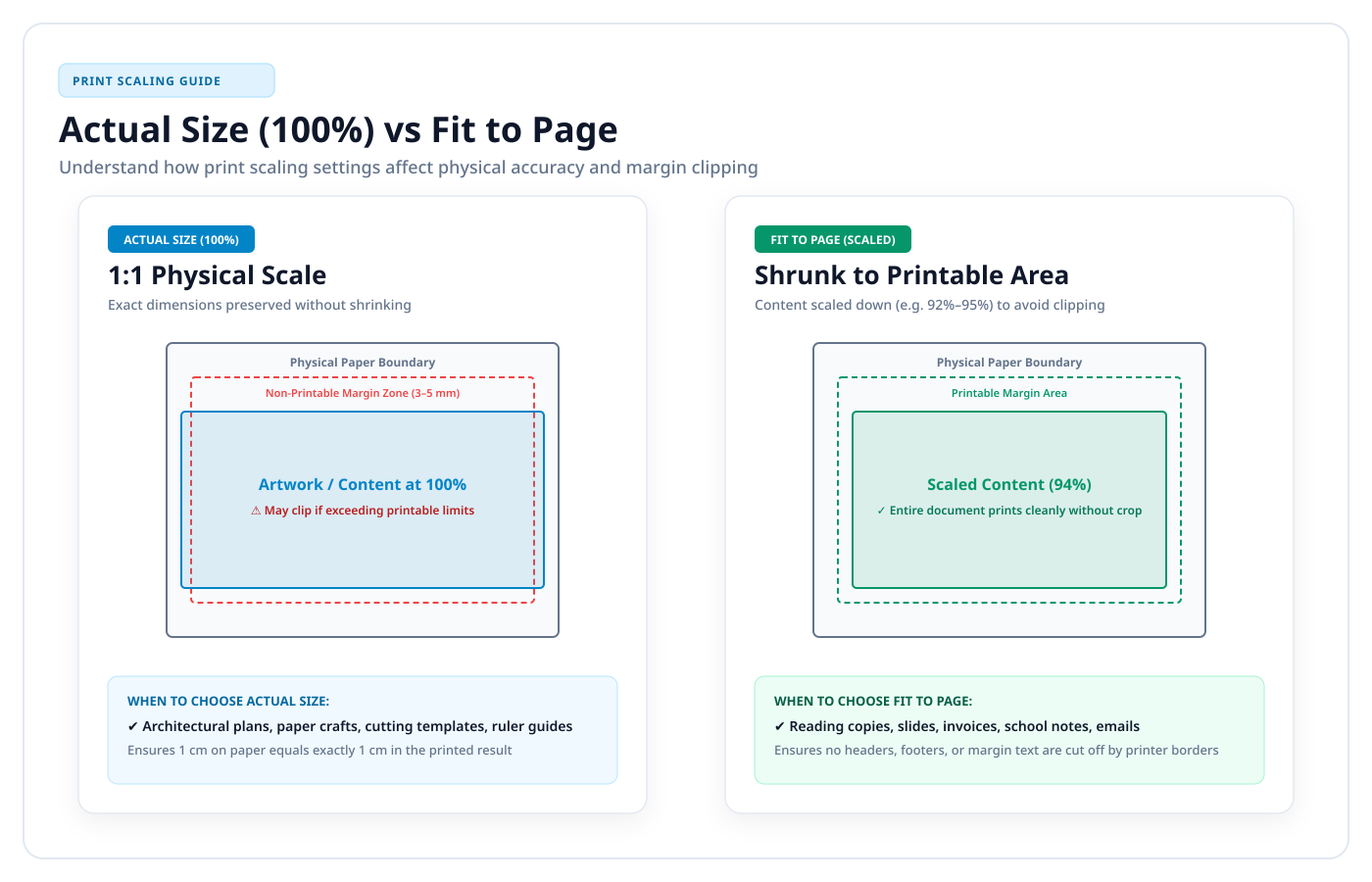
- Actual size vs fit: Choose Actual size for dimension-critical work. Choose Fit only when the content may be scaled.
- Poster/tile printing: Acrobat can split a large page across several sheets. The output is only accurate if the scale is 100% and overlap is set deliberately.
- Browser PDF viewers: Chrome and Edge use their own PDF engine. The paper size menu is in the preview sidebar, and “Fit to printable area” is on by default in some versions.
For a deeper comparison of the two scaling modes, see actual size vs fit to page.
Step 6: Prevent it from happening again
A short checklist saves a lot of paper:
- Decide the sheet size before creating the document.
- Set the document page size to match — do not rely on scaling at print time.
- Set the driver default to the paper you keep in the main tray.
- Label each tray in the driver with the paper it actually holds.
- Print one test page after changing paper, drivers or a PDF source.
- Keep a small ruler or caliper near the printer for envelopes and labels.
When the mismatch is not a setting
Occasionally the cause is hardware or firmware:
- Worn rollers feed a sheet slightly skewed, and the sensor reports a length error.
- A stuck sensor flag in the tray reports the wrong size regardless of the guides.
- Third-party firmware or a universal driver may not expose the correct size list.
- A print server or managed driver can override user settings and force Letter.
If the same sheet prints correctly from the manual slot but not the tray, the tray sensor or guides are the likely culprit. If every size is reported incorrectly, update the firmware and reinstall the manufacturer’s driver rather than the generic one.
Frequently asked questions
Why does my printer say “Load Letter” when A4 is loaded?
The driver is requesting Letter. Change the paper size in the print dialog or in the printer’s default preferences, and make sure the tray guides are set to A4. The two sheets are close in width but not identical, so auto-detection can disagree with a manual setting.
Why is my PDF printing smaller than the page?
Fit-to-page scaling is enabled. Choose Actual size in the PDF print dialog and set the printer paper size to match the PDF page size. If the PDF is Letter and the paper is A4, some scaling or cropping is unavoidable.
Can I print A4 on Letter paper?
You can, but the result will be scaled or cropped. A4 is narrower and taller than Letter. Use “Fit” to keep everything visible, or print at 100% and accept that the bottom edge may be cut. For documents that must keep their dimensions, use the correct sheet.
Why does Word ignore my paper size setting?
Word stores page size per section. A section break can bring back the old size, and the printer driver may override the document setting. Check Layout → Size at the cursor position, then confirm the paper size in the print dialog.
Do I need a custom size for envelopes?
Usually yes. Envelope formats such as C5, C6 and DL are in the driver list on many printers, but not all. If yours is missing, measure the envelope and create a custom size with the flap included in the height.