
How to Set Paper Size in Word, Excel, PowerPoint and PDF
Where each program hides its paper size setting, how scaling interacts with it, and the mistakes that make a document print on the wrong sheet.
Most “wrong paper size” problems start long before the print dialog. Word, Excel, PowerPoint and PDF each store a page size inside the file, and each has its own scaling controls. If you only change one of those layers, the printer does exactly what it was told and the result looks wrong.
This guide covers the settings that matter in each program, the order to change them, and the cases where scaling is the better choice.
The three settings that must agree
For a print to come out at the intended size, three values must match:
- Document page size — stored in the file.
- Print dialog paper size — sent to the printer.
- Paper in the tray — the physical sheet.
A fourth value, scaling, decides what happens when they do not match. Set scaling to 100% for dimension-critical work; use “fit” only when the content may change size.
Microsoft Word
Change the page size
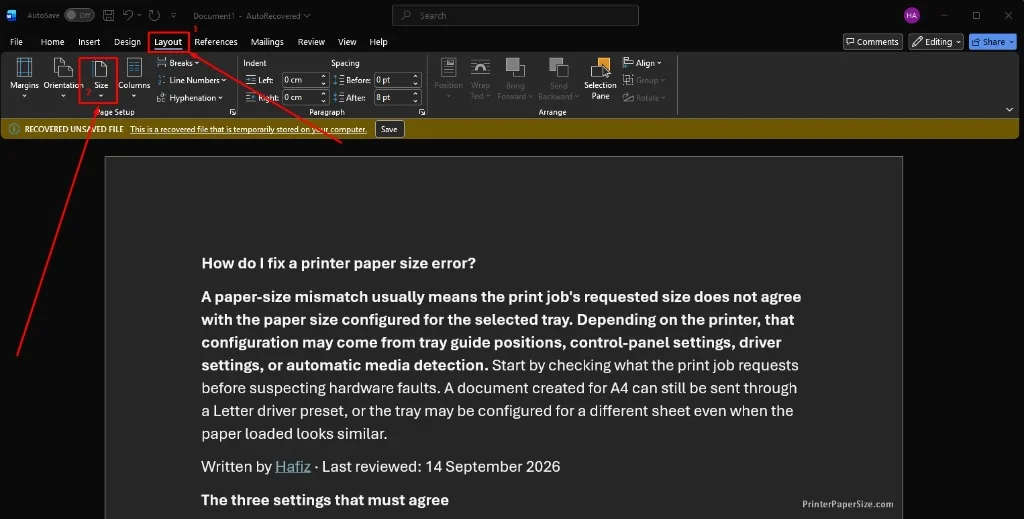
- Open Layout → Size.
- Choose a preset such as A4, Letter or Legal, or click More Paper Sizes.
- In the Page Setup dialog, enter a custom width and height if needed.
- Check Apply to — “Whole document” or “This section”. Word stores page size per section, so a section break can keep the old size.
Watch the section breaks
A document assembled from copied pages often contains several sections. Changing the size at the top of the document does not always change the pages after a section break. Click into the page that prints incorrectly and check Layout → Size again. The Page Setup dialog also shows whether the change applies to the current section only.
Printing
In File → Print:
- Set the printer’s Paper size to the sheet in the tray.
- Under Settings, choose Print All Pages and check Scale to Paper Size only if you want Word to fit the document to a different sheet.
- Leave 1 page per sheet unless you are making handouts or booklets.
Word’s “Scale to Paper Size” is a print-time override; it does not change the document. That is useful for a quick copy, but confusing when the same file is printed again later.
Default paper size for new documents
Word takes the default from the printer driver, not from a separate Word preference on Windows. If new blank documents open as Letter on an A4 printer:
- Set the printer’s default paper size to A4 in Windows printer preferences.
- In Word, open Layout → Size → More Paper Sizes → Set As Default.
- Choose All documents based on the Normal template when prompted.
On macOS, the page setup is stored in the Normal template; the same Set As Default button applies it to new documents.
Microsoft Excel
Excel has two different size concepts: the paper size and the print area.
Paper size
- Open Page Layout → Size.
- Choose the sheet size.
- Click the small arrow in the Page Setup group for margins, orientation and scaling.
Scaling
Excel rarely fits on one page at 100%, so it offers:
- Adjust to % normal size — a fixed percentage.
- Fit to 1 page wide by N tall — shrinks until the print area fits.
Both are print-time scaling. A spreadsheet that looks correct on screen can print at 60% because “Fit to 1 page” is still enabled. Check Page Layout → Scale to Fit before blaming the printer.
Print area and page breaks
Set the print area with Page Layout → Print Area → Set Print Area. Use View → Page Break Preview to see where pages split. A stray column outside the print area can create an extra page in a different orientation, which looks like a size error.
For wide tables, A3 or Tabloid is often a better choice than shrinking to 50% on A4. The A3 page explains the dimensions, and the paper cutting calculator helps when you need to split a large sheet into smaller handouts.
Microsoft PowerPoint
PowerPoint slides are not pages in the same sense. The slide size is a design decision, and the print dialog decides how that slide lands on paper.
Change the slide size
- Open Design → Slide Size.
- Choose Standard (4:3), Widescreen (16:9) or Custom Slide Size.
- Choose whether to maximize or ensure fit when resizing existing content.
A 16:9 slide printed on A4 portrait will almost always be scaled down, leaving large margins. That is normal: the slide aspect ratio does not match the paper.
Print settings
In File → Print:
- Full Page Slides prints one slide per sheet.
- Handouts prints 2, 3, 4, 6 or 9 slides per page. The paper size still applies to the handout sheet, not to each slide.
- Notes Pages prints the slide plus speaker notes.
- Scale to Fit Paper enlarges the slide to fill the sheet; leave it off if you need a consistent size across printers.
For a printed handout, A4 or Letter is usually right. For a wall poster, set a custom slide size that matches the final print, or design at half scale and enlarge at the print shop.
PDF files
PDFs are the most reliable format for exact-size printing because the page size travels with the file. The complications come from the viewer and the driver.
Check the PDF page size
In Adobe Acrobat or Reader, open File → Properties and read the page size. A document described as 8.5 × 11 in is US Letter; 210 × 297 mm is A4. Mixed-size PDFs show the size of the page currently displayed.
Print at actual size
In the print dialog:
- Set Paper size to match the PDF page.
- Choose Actual size under Page Sizing & Handling.
- Choose Choose paper source by PDF page size if the PDF contains more than one size.
“Fit” and “Shrink oversized pages” are convenient but change the scale. For labels, envelopes and templates, always use actual size.
Poster and tile printing
Acrobat’s Poster mode splits a large page across several sheets. Set the tile scale to 100%, choose an overlap (10 mm is common), and print a test tile before committing to the full job. The A2 page and A1 page are useful references when planning a tiled poster.
Browser PDF viewers
Chrome and Edge have their own PDF engines. Their print preview includes a paper size menu and a scale option, and Chrome sometimes defaults to “Fit to printable area”. Open More settings and set scale to 100% for exact output.
Common mistakes
- Changing only the print dialog. The file keeps its original size, so the next print is wrong again.
- Leaving “Fit to page” on. It silently shrinks or enlarges every job.
- Using a printer preset from another country. Letter and A4 presets are not interchangeable.
- Printing a landscape document on a portrait setting. The driver may rotate and scale to compensate.
- Forgetting the second tray. A print job may pull from the manual feed even when the main tray is full.
- Assuming 100% means the same thing everywhere. Some drivers apply an unprintable margin even at 100%, which slightly reduces the image area.
A reliable workflow
- Decide the final sheet before designing.
- Set the document page size in the program.
- Set the same size in the print dialog.
- Confirm the tray guides and the loaded paper.
- Use actual size / 100% for anything measured.
- Print one test page before a long run.
If the printer still reports a mismatch after these steps, the problem is usually the driver default or the tray sensor rather than the document. The guide to printer paper size mismatch walks through that diagnosis.
Frequently asked questions
Does changing the paper size in Word change the PDF?
Yes, if you export after changing it. The PDF takes the page size from the document. If you only change the print dialog, the exported PDF keeps the original size.
Why does Excel print on two pages when it looks like one?
Scaling is set to 100% and the print area is wider than the sheet. Either reduce the scale, choose “Fit to 1 page wide”, or switch to a wider paper size such as A3 or Tabloid.
How do I print a PDF at exactly 100%?
Choose Actual size in the PDF viewer, set the printer paper size to the PDF page size, and disable “Fit to printable area”. Then confirm the printer’s own scaling is also 100%.
Can I print an A4 document on Letter paper without changing the file?
Yes, using fit-to-page scaling, but the output will be slightly smaller and the margins will change. For documents with measured content, change the page size or use the correct paper.